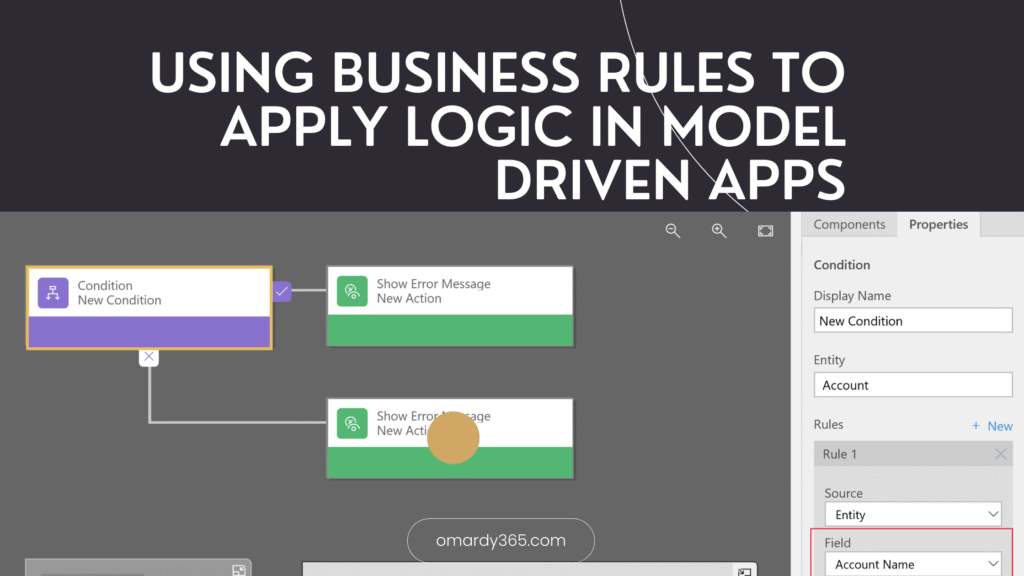
Business rules are one of the simplest ways to apply logic in a model driven app without writing JavaScript. They allow you to control form behaviour, validate data, and guide users using clear conditions and actions.
If you are new to Dynamics 365 or the Power Platform, business rules are often the best place to start before reaching for custom code.
What is a business rule
A business rule lets you define logic that runs when certain conditions are met. You define the condition, then tell the system what action to take.
For example, if a user selects a certain value in a column, you can automatically show another column, make it required, or set its value.
All of this is done using a visual designer, with no coding required.
What is possible with business rules
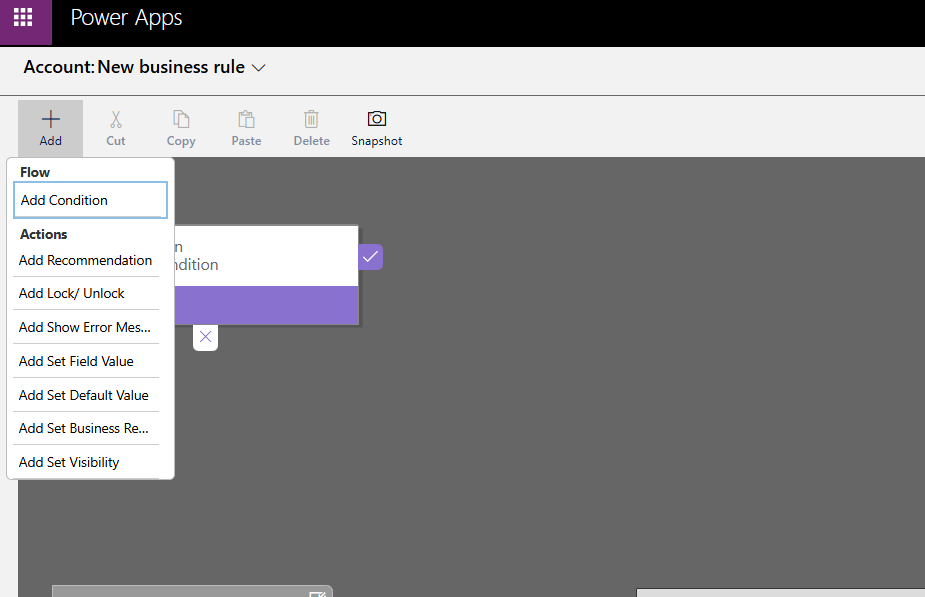
Business rules can be used to handle many common requirements in model driven apps.
You can use them to
Set column values automatically
Clear column values when conditions change
Set columns as required or optional
Show or hide columns on a form
Enable or disable columns
Validate data and show error messages
Display simple business recommendations to guide users
These features make business rules ideal for enforcing data quality and improving the user experience.
Common limitations to be aware of
While business rules are powerful, they do have limits.
Business rules do not work with multi select choice columns.
They only work on the current row and cannot perform logic across multiple records.
They are designed for simple conditions, not complex calculations.
If your requirement goes beyond this, you may need JavaScript, Power Automate, or a plugin.
How business rules work behind the scenes
Every business rule starts with a condition.
When that condition is met, one or more actions are executed.
When building a rule, you also choose a scope.
Entity scope means the rule applies across the table, including forms and other entry points.
All forms scope means the rule only runs on forms for that table.
As you build the rule, the system automatically generates code in the background. This code is read only and cannot be edited. It is shown for reference only.
Useful features in the business rule designer
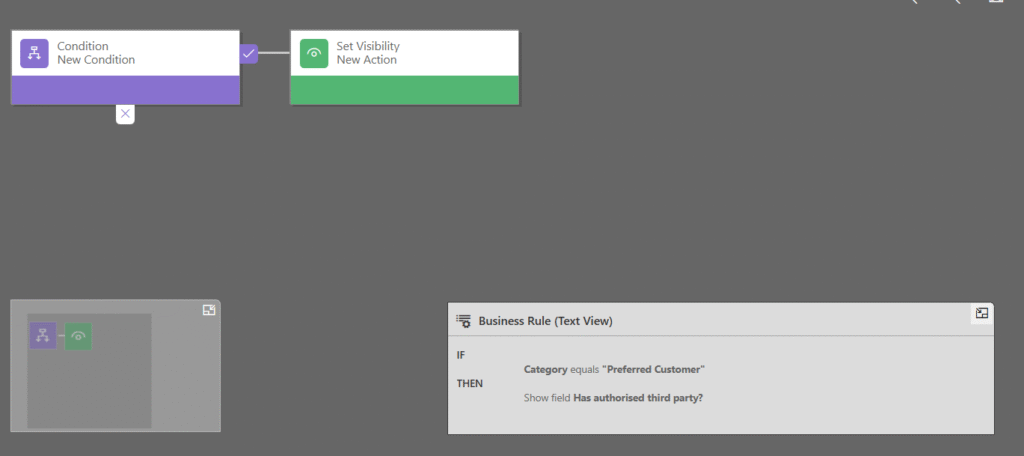
The designer includes a few helpful tools that are easy to miss.
You can take a snapshot of the rule from the action bar. This is useful when sharing the rule with team members for feedback or documentation.
There is also a mini map that helps you navigate larger rules. This becomes useful once your rule grows beyond a simple condition and action.
Practical business rule examples
Here are some real world scenarios where business rules work very well.
Show or hide a column
If Contact Type equals Customer, then show the Account Number column.
Otherwise, hide the Account Number column.
Set a column as required
If Preferred Contact Method equals Email, then make Email required.
Otherwise, set Email to optional.
Automatically set a value
If Country equals Australia, then set Currency to AUD.
Disable a column after submission
If Status equals Submitted, then disable the Estimated Budget column.
Validate data with an error message
If Start Date is after End Date, then show an error message to the user.
Business recommendation example
If Opportunity Value is greater than 100000, then display a recommendation suggesting management approval.
These scenarios cover most day to day requirements without writing any code.
Why a business rule might not be firing
A common reason a business rule does not execute is that a referenced column is not included on the form.
If a column used in the condition or action is missing from the form, the rule will not run as expected. Always check that every column used by the rule is present on the form.
When to use business rules
Business rules are best used when
You want simple logic without custom code
You want consistent behaviour across forms
You want to improve data quality at the point of entry
They are often the first and best option before moving to more complex solutions.